
Today, we want to share our first screencast using Asciinema with you. The screencast is recorded on a per-character-basis directly from the Windows terminal. This allows you to copy'n'paste commands and output as needed, saves bandwidth and looks sharp and pretty.
Part 1: Setup a Raspberry Pi 3 from scratch #
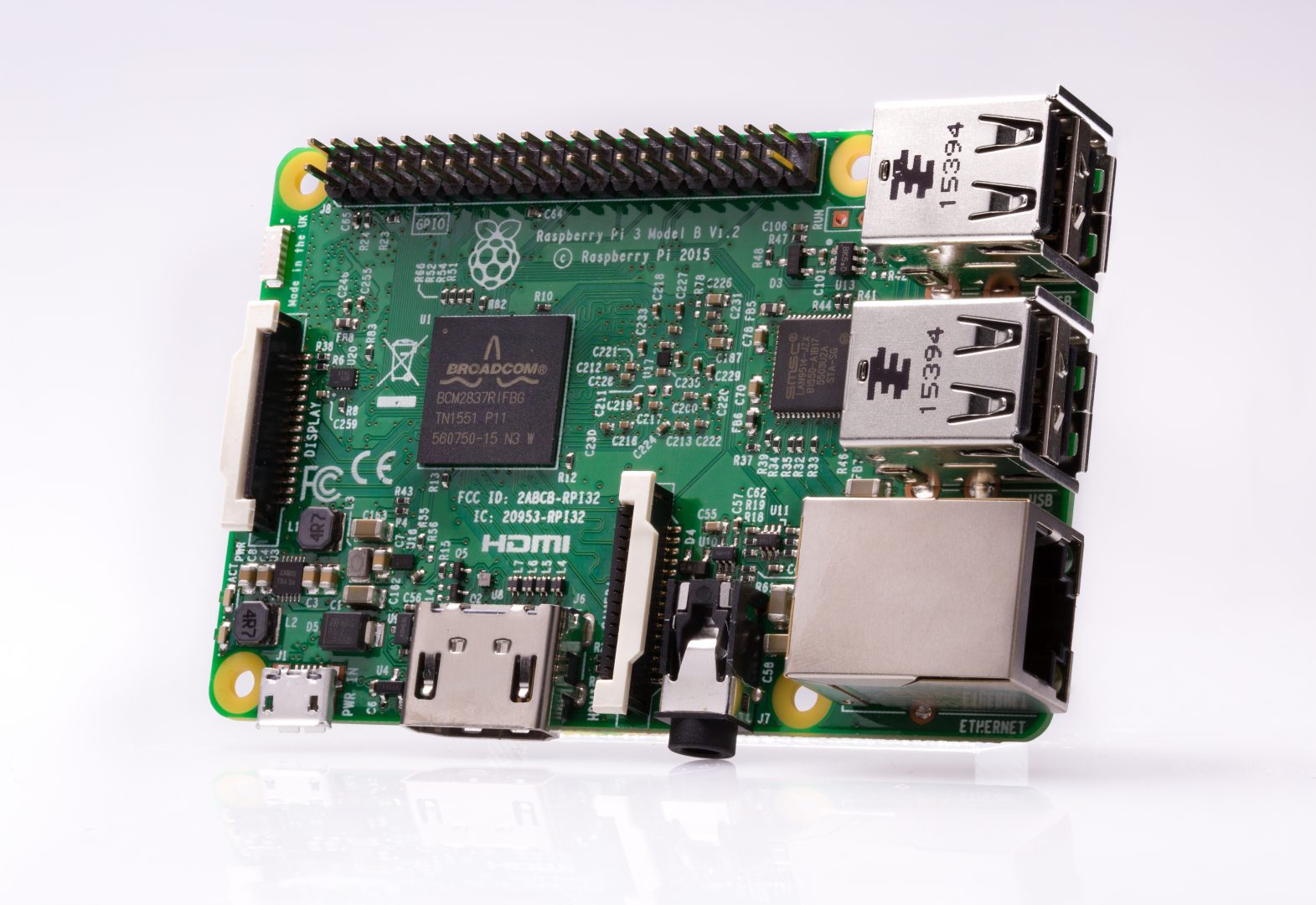
We assume you have bought a new Raspberry Pi 3 together with a Micro USB power supply (at last 2.1A) and a Micro SD card. We also assume that the Micro SD card is formatted as FAT32 and available as drive D: on an updated Windows 10 installation. Watch the screencast (explanations follow in the next section):
Details and explanations #
-
Download NOOBS from https://www.raspberrypi.org/downloads/noobs/.
-
Unzip to Micro SD card (drive D:)
-
Automatically have SSH enabled directly after the Raspbian installation has finished by creating a file ssh in D:\
echo . >D:\ssh -
Make sure Raspbian OS will be installed automatically (disable prompting for other OS):
-
Remove other OS from SD card:
rd /s /q D:\os\LibreELEC_RPi2 rd /s /q D:\os\LibreELEC_RPi -
append silentinstall to the first (and only) line in D:\recovery.cmdline
-
-
Remove SD card, insert into Raspberry Pi, connect Ethernet and Power. Wait. Raspbian OS will be installed automatically. This took about 10minutes with our system.
-
While Raspbian installation is running, make sure that you have installed the Linux Subsystem for Windows to use SSH
- as an alternative, install PuTTY and use pscp instead of scp and putty instead of ssh.
-
The Raspberry Pi will become available with hostname raspberrypi on the network.
Default user: pi, Default password: raspberry .
Setup and test HALCON 13 on a Raspberry Pi 3 with Raspbian #
Launch bash on the Linux Subsystem for Windows by typing bash in the Windows Start Menu (will match Bash On Ubuntu on Windows). Then:
Details and explanations #
-
Copy HALCON (Linux) to your newly setup Raspberry Pi:
scp halcon-13.0.1.1-linux.tar.gz pi@raspberrypi:/tmp-
As this is your first connection to the Raspberry Pi, type yes to add raspberrypi to your list of known hosts.
-
Default user is: pi, Default password is: raspberry
-
-
SSH to
raspberrypi:ssh pi@raspberrypi -
Change default password for user pi:
passwd -
Unpack HALCON to /tmp/halcon:
cd /tmp mkdir halcon tar xvf halcon-13.0.1.1-linux.tar.gz -C halcon -
Install HALCON to /opt/halcon/halcon-13.0:
cd /tmp/halcon sudo ./install-linux.sh- During installation: Accept license, install to /opt/halcon/halcon-13.0, create target directory, choose Full (3) installation, install English documentation (1).
-
Remove temporary installation files:
rm -r /tmp/halcon halcon-13.0.1.1-linux.tar.gz /tmp/halcon -
Add a new command h13 to your .bashrc file. This allows to type h13 in the shell to setup your environment for HALCON 13.0:
-
Add this to your .bashrc
function h13 { . /opt/halcon/halcon-13.0/.profile_halcon } -
Try it:
bash
h13
-
-
Enable license mechanism
-
Copy your license obtained from MVTec from the host computer (Windows 10) to the Raspberry Pi:
scp license.dat pi@raspberrypi:/opt/halcon/halcon-13.0/license -
attach your HALCON USB dongle
-
make sure the dongle appears as USB HID device (WIBU-SYSTEMS AG CodeMeter):
dmesg | tail -n 10 -
copy udev rule for dongle and reload udev system:
sudo cp /opt/halcon/halcon-13.0/misc/linux/udev/rules.d/59-halcon-codemeter.rules /etc/udev/rules.d
sudo udevadm trigger
-
-
Run hbench and hbench -parallel. Example output:
pi@raspberrypi:~ $ hbench
HALCON 13.0.1 Benchmark (v13.0.1)
=================================
thread_num=1
(computing on images of size 1280x1024)

DATA_TYPE          reentrant
            time[ms]   value
byte ........  1.9e+03     0.7
int4 ........  860.563     0.7
float .......  2.4e+03     0.4
region ......  821.581     0.6
tuple .......   12.033     0.8

sum .........   6005.7     0.7
pi@raspberrypi:~ $ hbench -parallel HALCON 13.0.1 Benchmark (v13.0.1) ================================= thread_num=4 (computing on images of size 1280x1024) DATA_TYPE parallel (4) time[ms] value byte ........ 603.095 2.3 int4 ........ 242.844 2.5 float ....... 835.306 1.2 region ...... 241.375 2.2 tuple ....... 3.947 2.3 sum ......... 1926.6 2.1
Write a simple C++ program that uses HALCON 13 #
We will write, compile, and run a simple and very basic HALCON C++ program. For demonstration only, it counts
the number of pixels with gray values greater or equal 127 in the example image monkey.
Details and explanations #
-
Create a C++ program in
~/halcon/hellorpi/main.cpp// main.cpp #include <iostream> #include "halconcpp/HalconCpp.h" int main(int argc, char** argv) { (void)argc; (void)argv; HalconCpp::HImage image("monkey"); HalconCpp::HRegion region; HalconCpp::Threshold(image,®ion,127,255); // make sure to stream the tuple's integer value with .L() // otherwise, you would output the tuple in serialized format std::cout << "area: " << region.Area().L() << std::endl; return 0; } -
Compile with
g++ -g -o hellorpi -I${HALCONROOT}/include -L${HALCONROOT}/lib/${HALCONARCH} \ -lhalcon -lhalconcpp -Wl,-pthread -lm -ldl main.cpp -
Execute:
pi@raspberrypi:~/halcon/hellorpi $ ./hellorpi
area: 140422
Setup a Raspberry Pi Camera Module v2 for usage with Video4Linux2 #
TODO We will write, compile, and run a simple and very basic HALCON C++ program. For demonstration only, it counts
the number of pixels with gray values greater or equal 127 in the example image monkey.
Details and explanations #
-
Enable camera
sudo raspi-config-
In the graphical interface, go to
5 Interfacing OptionsthenP1 Cameraand then answer the questionWould you like the camera interface to be enabled?withYes. -
Reboot
-
Check if camera is available:
vcgencmd get_cameraThe output should be like
supported=1 detected=1 -
Another test is to try to grab an image file:
raspistill -w 2592 -h 1944 -o test.jpgIf everything works, the command should return without any message.
-
-
Install V4L module
-
Try loading the module with
sudo modprobe bcm2835-v4l2 -
If
modprobereturns without errors, add the module permanently. At the end of file/etc/modulesadd the entry:# camera driver for v4l2 bcm2835-v4l2 -
Reboot
-
Execute HDevEngine script to process live images from the camera #
HALCON 13.0 for armv7a-linux comes with a handy example program called hrun. We will compile it and execute a HDevEngine script to decode a ECC200 data code:
Details and explanations #
-
Create a directory and copy the example program to it:
mkdir ~/halcon/hrun cd ~/halcon/hrun cp -rp /opt/halcon/halcon-13.0/examples/armv7a-linux . -
as we will compile directly on the Raspberry Pi 3 (in contrast to cross-compiling), we have to set the environment variable
NATIVEtoyes:export NATIVE=yesAttention: The HALCON document HALCON for Arm-based Platforms says you have to set it to
YES. This is wrong, you have to use the lowercase writingyes. -
Build
hrunmake -
Execute
hrun/bin/armv7a-linux/hrunThis will show the command line help for
hrun. -
HALCON comes with the example script
datacode.hdevto decode a ECC200 data code. It should output the decoded string together with the live images in a window, but the text output does not seem to work. Therefore, we will patchdatacode.hdevto-
use live video images. Open datacode.hdev and change
UseLiveImagesfrom0to1:<l>UseLiveImages := 1</l> -
output the decoded string to the console (stdout). As one of the first script lines add
<l>open_file ('standard', 'output', STDOUT)</l>
and add after the existing disp_message script line:
<l>fwrite_string (STDOUT, DecodedDataStrings + '\n')</l> -
-
Execute
hrunwithdatacode.hdevIf you are using a remote connection to the Raspberry Pi, make sure you have a SSH connection that supports X-Forwarding (
ssh -X pi@raspberrypi) to open the live video image on your development machine. Then execute:./bin/armv7a-linux/hrun datacode.hdevIf you hold a ECC200 data code in front of the camera, it should be decoded and output to the console.
Questions? #
If you have any questions regarding this topic or and other HALCON related questions please do not hesitate to contact us.